Firmware
The Firmware page compares the BIOS and BMC firmware installed on each server with a catalogue of the newest versions that you maintain. It has three tabs:
- Overview: what needs doing first (hardware that is not in the catalogue yet), one summary per component (how many servers are up to date, have an update available, run a version that is not in the catalogue, or have not reported a version yet; click a number to list those servers), the servers by hardware and the list of all servers.
- Catalogue: the newest version per kind of hardware, and the hardware that has no entry yet.
- History: what changed, newest first and grouped by day: a server reporting a new version (
U32 v2.68 → U32 v2.72, read from the BMC or reported by hardware collect) and every update started from TrixOS with its result and job log. Show first readings adds the first version read from each server.
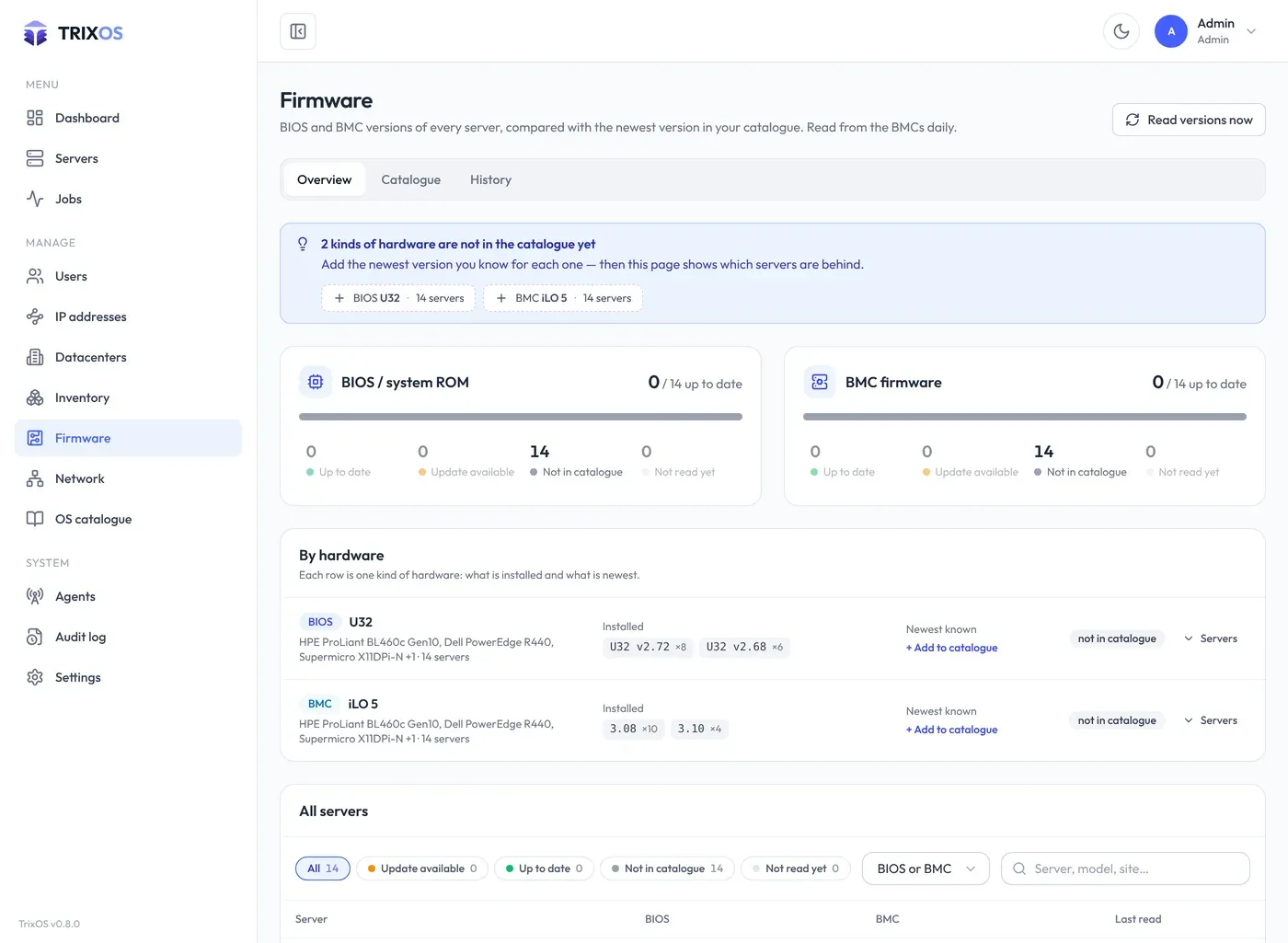
By hardware
Section titled “By hardware”Each row is one kind of hardware: a catalogue entry, or a BIOS family / BMC model without one. It shows the server models, the versions installed (with how many servers run each), the newest version known and how many servers are behind. Servers opens the servers of that row with their versions and an update button each; Update N updates all of them at once (see below). A row without a catalogue entry has Add to catalogue.
Installed versions
Section titled “Installed versions”TrixOS reads BIOS and BMC versions from the BMC once a day and during every hardware collection. Read versions now on the Firmware page reads them from every BMC right away. Each server keeps a version history: every version seen, with the first and last time it was seen, on the server’s Inventory tab.
The catalogue
Section titled “The catalogue”A catalogue entry says: for this component (BIOS or BMC) on hardware that matches this text, the newest version is X. It can carry a release date, a download link and notes.
- Match is a case-insensitive piece of text. For BIOS entries it is compared with the BIOS family and version
plus the server model (for HPE servers the BIOS family, such as
P89for a DL380 Gen9, is a good match). For BMC entries it is compared with the BMC model, such asiLO 5. When several entries match, the longest match wins. - Versions are compared numerically after removing an HPE family code, a leading
vand dates in brackets, soP89 v3.40,v3.40and3.40 (08/29/2024)are the same version.
Hardware without a catalogue entry is listed at the top of the overview and on the Catalogue tab, with the number of servers; one click opens a new entry prefilled with the newest version installed in your fleet.
Updating firmware through the BMC
Section titled “Updating firmware through the BMC”A catalogue entry can carry an Image URL: the firmware file for that version. When a server is behind the
catalogue, its Inventory tab and the Firmware page offer an update. TrixOS asks the BMC to download the image itself
(Redfish SimpleUpdate) and flash it, as a job:
- The image URL must be reachable from the BMC network, for example a web server next to your site agent. The panel never relays the file.
- The job follows the BMC’s progress and, at the end, reads the version again to check it.
- A BMC update restarts the BMC; it is unreachable for a few minutes while the server keeps running.
- An HPE BIOS update becomes active at the next reboot of the server.
- Don’t cut the power while an update runs.
Updates are hardware jobs like power actions: one per server at a time and confirmed with the hostname. In dry-run mode they only log what they would send to the BMC.
Update N on a row of the overview updates every server of that catalogue entry that is behind, one job per
server. Confirm it by typing the entry’s Applies to (for example U32). Protected servers and servers that
already run a hardware job are skipped and listed with the reason.
States
Section titled “States”| State | Meaning |
|---|---|
| up to date | The installed version is the newest in the catalogue (or newer) |
| update available | The catalogue knows a newer version |
| not in catalogue | A version was read, but no catalogue entry matches |
| not read yet | The BMC has not reported a version (no credentials, or not read since the server was added) |
The state appears on the Firmware page, in the server list column Firmware, on the server’s Inventory tab and on the dashboard.