Licensing
Every TrixOS installation is activated online, the free Community Edition too. The editions differ only in how many servers you can manage; every edition has every feature. Prices are on trixos.sh.
| Edition | Servers | How to activate |
|---|---|---|
| Community | up to 10 | E-mail address |
| Pro | as licensed, at least 20 | License key |
| Enterprise | as agreed | License key |
Only servers count towards the limit. Switches, subnets, users and datacenters are not counted.
Activate
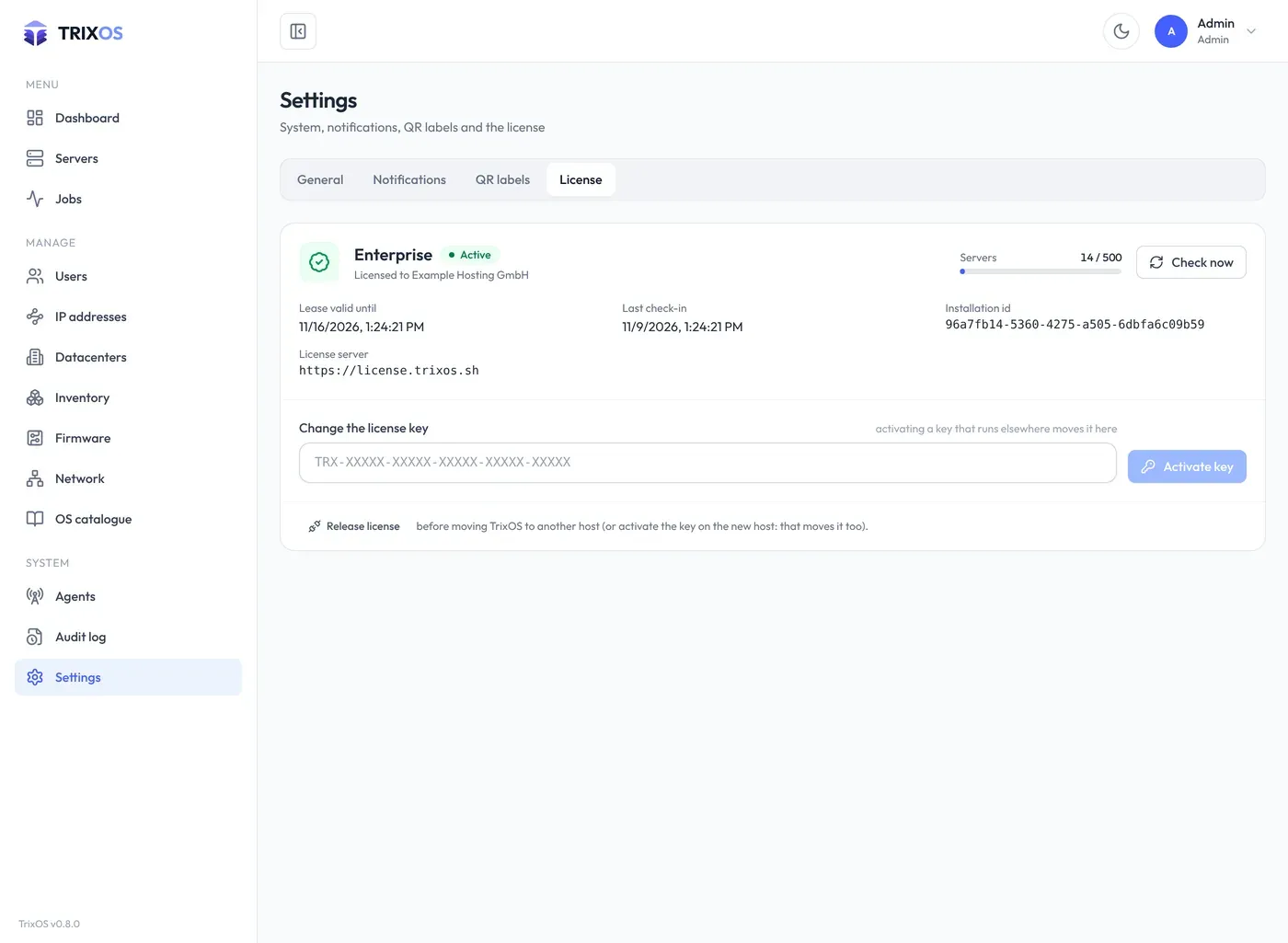
Section titled “Activate”In the panel, open Settings → License as an administrator (the old License address leads there):
- Pro or Enterprise: enter your license key and activate. A key that is active on another installation moves here.
- Community Edition: as long as no license is active, the same card offers it: enter your e-mail address and activate.
Or on the command line of the panel host:
docker compose exec api trixos license activate TRX-XXXXX-XXXXX-XXXXX-XXXXX-XXXXXFor automated installs, put the key into .env before the first start (TRIXOS_LICENSE_KEY=…); the panel activates
it on its own.
The panel needs outbound HTTPS to the license server, https://license.trixos.sh by default. TRIXOS_LICENSE_URL
can point somewhere else, for example an internal proxy. That can’t unlock anything: leases are verified with the
public key built into TrixOS.
Check-ins and leases
Section titled “Check-ins and leases”After activation the panel holds a lease: a statement from the license server, signed with Ed25519, that says which edition this installation has and for how many servers. A lease is valid for 7 days. The panel renews it every 6 hours, and every 5 minutes while it isn’t active or after a failed check-in. So the panel keeps working through an outage of your internet connection or of the license server for up to 7 days.
Every process that does work (API, worker, poller, PXE) checks the lease itself, from the database.
Settings → License in the panel and trixos license status show the state, the edition, servers used, the lease’s end, the
last check-in and the last error. trixos license check checks in right away.
IP lock
Section titled “IP lock”A license can be locked to the public IP addresses of your panel (Trivox sets this up). Activations and check-ins from other addresses are refused. If your panel moves or its public IP changes, Settings → License shows The license is locked to another IP address with the address the license server saw: the panel keeps working until the lease ends (up to 7 days). Ask Trivox to allow the new address, then use Check now.
What a check-in sends
Section titled “What a check-in sends”The license id and the activation secret issued at activation, the installation id, the panel’s hostname, the TrixOS version, the number of servers and a random nonce. Activation sends the license key or the Community e-mail address instead of the license id and secret. No server names, IP addresses, credentials or customer data are sent.
Over the limit: read-only
Section titled “Over the limit: read-only”With more servers than the license allows, the panel is read-only. Everything can still be viewed, and servers
can be deleted to get back under the limit. Every other change is refused: the native API answers
402 LICENSE_REQUIRED. Once you are within the limit, or the license is larger, everything works again.
Locked
Section titled “Locked”The panel locks itself to sign-in and the license page when:
- no license has been activated,
- the lease is invalid, forged, or belongs to another installation,
- the license was revoked or its term ended,
- the lease ran out because no check-in succeeded for 7 days,
- the system clock was set back behind the last time TrixOS saw.
While locked, the native API answers 402 LICENSE_REQUIRED, and the TenantOS-compatible API answers in TenantOS
format (HTTP 500, {"message": "Exception", "result": "…"}). Jobs, polling and PXE stop too. Your servers keep
running; only the panel stops managing them. As soon as a valid license is active again, everything resumes.
Moving the installation
Section titled “Moving the installation”The license belongs to the installation id, which lives in the database. When you move the panel with its database,
the license moves with it; nothing to do. To activate the key on a new, empty installation instead, release it on the
old one first (License → Release license, or trixos license deactivate) and activate it on the new one. See
Move the control server.
Commands
Section titled “Commands”| Command | Does |
|---|---|
trixos license status [--json] |
State, edition, servers used, lease and last check-in |
trixos license check |
Check in with the license server now |
trixos license activate <key> |
Activate a Pro or Enterprise key |
trixos license community <email> |
Activate the Community Edition |
trixos license deactivate |
Release the license; this installation locks |
Run them with docker compose exec api trixos … on the panel host. See also the command line reference.