OS installs & rescue
Everything that boots a server over PXE is defined in the OS catalogue. TrixOS ships a catalogue and keeps its built-in entries up to date with every release; you can add your own entries and turn built-in ones off. OS profiles and post-install scripts open on their own page (OS catalogue → name or Edit, New profile, New script): general fields, the config as JSON (checked as you type) and the options side by side; Ctrl + S saves a script.
Operating systems
Section titled “Operating systems”| Family | Versions | Install method |
|---|---|---|
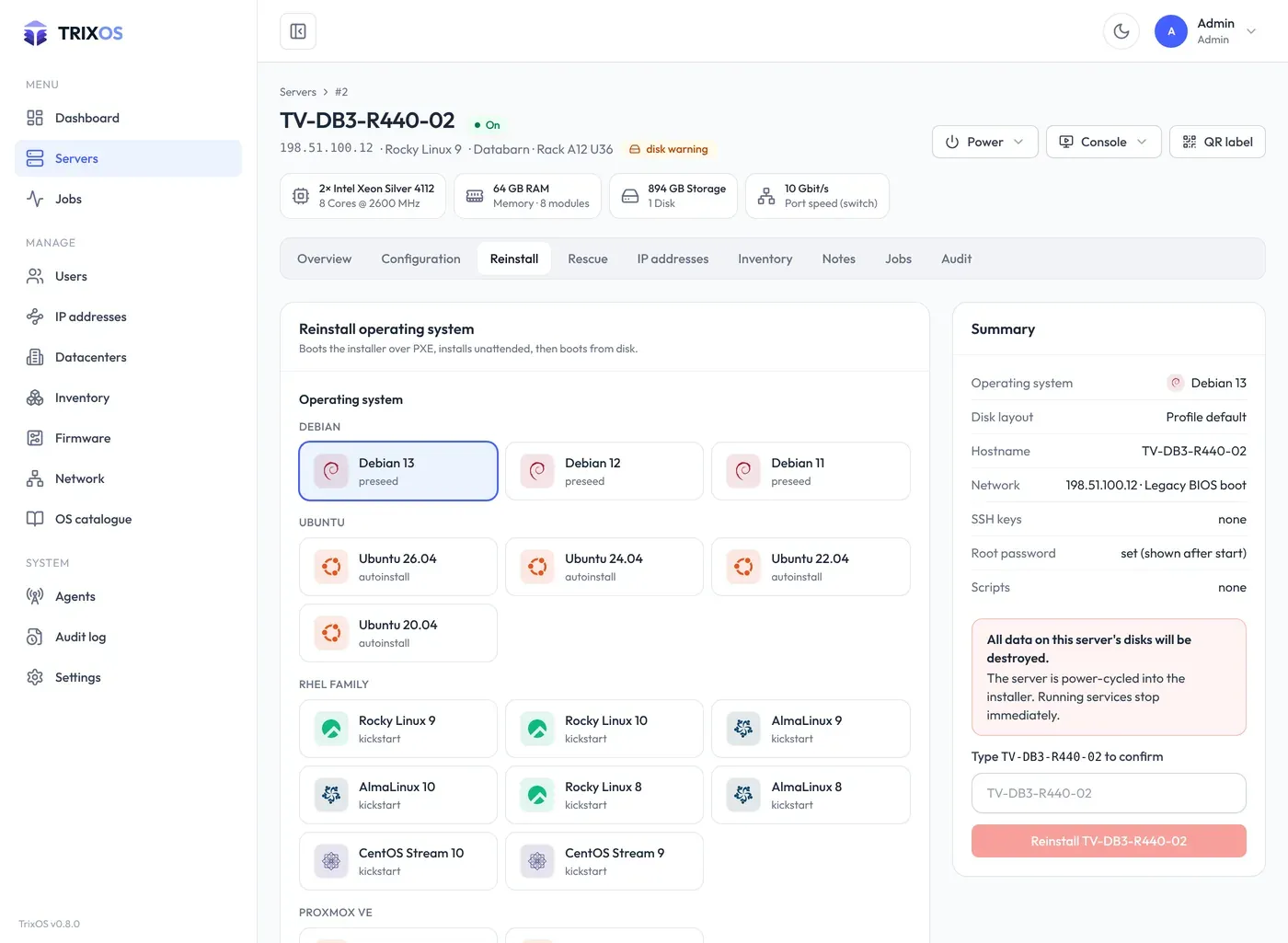
| Debian | 11, 12, 13 | preseed |
| Ubuntu | 20.04, 22.04, 24.04, 26.04 | autoinstall |
| Rocky Linux, AlmaLinux | 8, 9, 10 | kickstart |
| CentOS Stream | 9, 10 | kickstart |
| Proxmox VE | 8, 9 | Debian install plus Proxmox |
| Windows Server | 2019, 2022, 2025 | WinPE, needs your own install media (see below) |
The server page has two tabs for this, Reinstall and Rescue, each a single page with everything visible at once (no steps). Reinstall shows the OS profiles by distribution, the disk layout, hostname, the root password and SSH keys and the post-install scripts; the summary on the right lists what will happen, including the boot mode, and the job starts after typing the hostname. The boot mode (automatic, legacy BIOS or UEFI) is not asked here: it is set once per server under Configuration → PXE installation and used by every PXE job. The installer configures the server’s primary IP address and reports its progress and log back to the job.
Boot mode “automatic”
Section titled “Boot mode “automatic””The PXE boot override has to match the firmware: a server in UEFI mode ignores a legacy PXE request and boots from disk (HPE Gen9 and newer ship in UEFI mode). With automatic, every PXE job first finds out the mode:
- From the BMC: Redfish BMCs, and IPMI BMCs of vendors that also speak Redfish (HPE iLO, Dell iDRAC, Lenovo XCC, Supermicro), report the BIOS boot mode. TrixOS asks with the same account, read-only.
- From the last PXE boot: the site agent sees the firmware type in the server’s DHCP request and TrixOS remembers it.
- Unknown (plain IPMI, never booted): TrixOS tries legacy PXE first. If no DHCP request arrives within 7 minutes, it retries once with UEFI PXE.
The job log says which mode was used and why; the server page shows the detected mode next to “Auto”. Set the boot mode to legacy BIOS or UEFI under Configuration to skip the detection.
At the end the installer powers the server off. The job waits for that, sets the boot order back to disk and powers the server on. A running installer is never cut off.
Disk layouts
Section titled “Disk layouts”Automatic partitioning, install on the largest or smallest disk, and software RAID 0, 1, 5 and 10 (/boot, swap
and / on md devices, the boot loader on every disk). Layouts define the minimum number of disks and can be
edited or extended.
Post-install scripts
Section titled “Post-install scripts”Shell scripts that run once in the new system. The built-in System upgrade installs all updates. Scripts are chosen per reinstall.
Rescue systems and tools
Section titled “Rescue systems and tools”| Entry | What it does |
|---|---|
| Rescue system (GRML) | Debian-based live system with SSH, using the root password and keys you set |
| SystemRescue 13, 11, 9 | Live system with SSH (autorun) |
| Clonezilla, Finnix, Memtest86+, netboot.xyz | Tools, booted as they are |
| Collect hardware information | Reads CPU, memory, disks, NICs, BIOS and SMART into the inventory, then powers off |
| Disk wipe | Erases every disk, fast or secure (below). Irreversible |
| Reset root password | Sets a new root password in the installed Linux, also on RAID or LVM |
| Reset Admin Password (Windows) | Clears the Administrator password of the installed Windows and enables the account |
On the Rescue tab, pick a system or tool; the panel on the right takes its options (root password, wipe template) and starts it after typing the hostname. Rescue systems keep running until you end the job.
Disk wipe: fast or secure
Section titled “Disk wipe: fast or secure”| Template | What happens | Takes |
|---|---|---|
| Fast wipe | Partition tables and signatures (file systems, RAID, LVM) removed, the first and last 100 MiB zeroed, SSDs trimmed (blkdiscard). No OS finds the old data any more, but it is not erased. |
a minute or two |
| Secure wipe | Each disk erases itself where it can: NVMe format with crypto erase (else user-data erase), ATA (enhanced) secure erase when the drive supports it and the BIOS has not frozen it, SAS sanitize. Everything else (RAID volumes, USB, virtual disks, frozen ATA drives) is overwritten once with random data. | minutes for SSDs, hours for large spinning disks (about 2 h 20 min per TB) |
All disks are wiped at the same time. Afterwards the first and last MiB of each disk are checked (zeroed, erased or
changed, no signature left), and each disk’s result is a line in the job log, e.g.
sda (3.6 TiB): ATA enhanced secure erase, checked. A disk that could not be wiped or checked fails the job and the
live system stays up for a look over SSH. The Rescue tab shows an estimate from the disks in the inventory; a secure
wipe gets a longer time limit than other jobs (1.5 × the estimate, 4 to 72 hours). The API takes wipeMethod: fast
or secure (the older blkdiscard, nvme, shred and zero still work: blkdiscard is fast, the rest secure).
Custom ISOs
Section titled “Custom ISOs”Under OS catalogue → Custom ISOs, add an ISO by URL (TrixOS downloads it) or place the file in the isos
directory of the installation and pick it by name. Custom ISOs boot over PXE with iPXE sanboot.
Downloads may only go to public addresses. To download from an internal mirror (private, loopback or link-local
addresses), set TRIXOS_ALLOW_PRIVATE_URLS=true.
Windows
Section titled “Windows”Windows installs need your own media:
- Copy the contents of the Windows ISO to the boot-file cache under
assets/win2025/(for Windows Server 2025), includingsources/boot.wim,boot/bcd,boot/boot.sdi, andwimbootfrom the iPXE project. - Share the full ISO contents read-only over SMB and enter the share in the profile (
smbShare). - Set the image index (for example
2for Standard with Desktop Experience) and enable the profile.
Requirements for every PXE job
Section titled “Requirements for every PXE job”- The server has a public IPv4 address in TrixOS.
- Its site has a working site agent, or the panel serves PXE itself.
- The NIC with the server’s PXE MAC address has network boot enabled.